
Contact us
Fill in your details, and we'll be in touch soon.
Fill in your details, and we'll be in touch soon.
För instruktioner på svenska, klicka här.
For instruksjoner på norsk, klikk her.
The activation of services via PSD2 is done directly in Monitor. Just make sure that you have logged in with BankID to your company's online bank at least once.
To order the service, you need to have the authorization to sign agreements.
1. Follow the link to Nordea to connect your bank account: Automatisera betalningar och avstämningar med Corporate Access Lite | Nordea
2. Once you have opened the page from the link above, click the "via Open Payments" button as shown in the image below.

3. Click the "Beställ här" button as shown in the image below and log in.

4. After logging in, fill out the form and complete the process with a digital signature.
5. It usually takes 1–5 business days from when you connect to the service until it is ready for use.
This video guides you through the steps to connect to the service after logging in to Nordea via the link above.
1. Go to "Manage users" in the online bank.
.png)
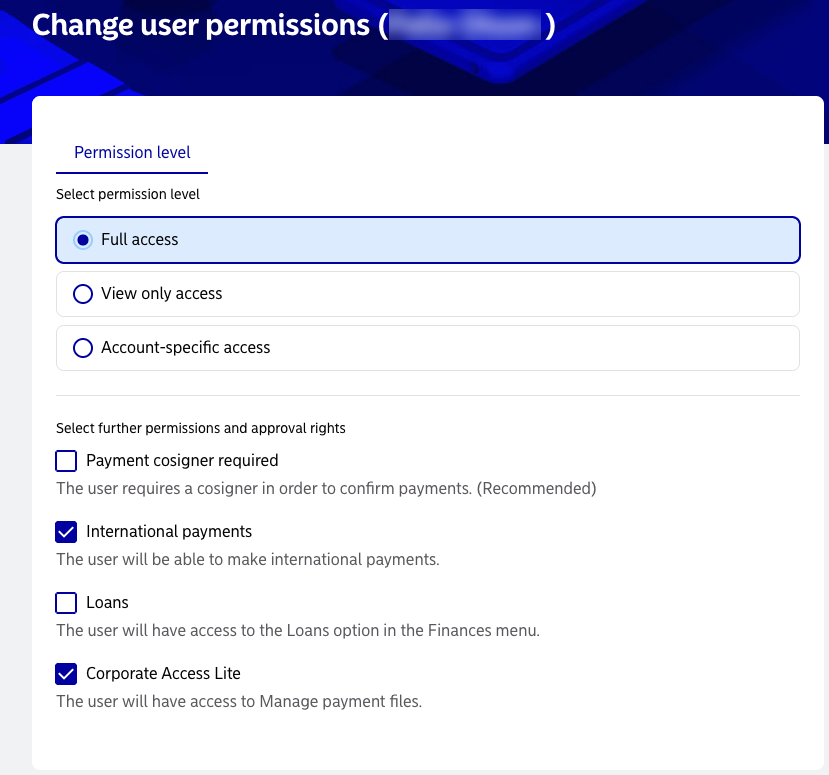
2. Click on a user and "Change user permissions".

3. Change the user's access. Full access is recommended. Corporate Access Lite is required for sending file payments.

Open payments Europe AB is a Payment Institute under the supervision of the Swedish Financial Supervisory Authority. Copyright © 2019 Open Payments Europe AB. Cookies